Many free PDF merger websites work the same way: you upload your documents to the company's server, the server combines them, and you download the result. For a birthday invitation that is fine. For a signed contract, a passport scan, a salary slip or a client's records, it means a copy of your document now also sits on a machine you do not control, kept for however long that service's policy says.
There is a second way. Modern browsers can do the merging themselves, on your own device, so the files never travel anywhere. This guide shows you how, using Ovatly's Merge PDF tool, and tells you plainly what this method cannot do.
Quick Answer
Open the Merge PDF tool, add your PDF files, drag them into the order you want, and download the combined file. The merging happens inside your browser using a PDF library that runs on your device, so your files are not uploaded to Ovatly or anywhere else. It is free and needs no account. How long the merge itself takes depends on the size of your files and the speed of your device, because your device does the work.
Contents
- Why uploading your PDFs is a real risk
- What you need before you start
- Step by step: merge PDFs in your browser
- Worked example: a job application, assembled
- What this method cannot do (limitations)
- Common mistakes
- Troubleshooting
- FAQs
- Conclusion
Why uploading your PDFs is a real risk
When a website says "upload your file", your document is copied to that company's server. From that moment, several things are governed by the service's policies rather than by you: how long the copy is kept, who can access it, and what happens to it if the service is breached or sold. Reputable services publish deletion policies, and many honor them, but you have no way to verify the deletion yourself.
Browser-based merging removes the question entirely. The Merge PDF tool loads a small program into your browser (the open-source pdf-lib library), and that program does the combining on your device. Your files are read by your own browser and the result is saved straight from your browser to your downloads. Nothing about the content of your documents is sent to Ovatly.
Two honest limits to that promise. First, "not uploaded" describes what the tool does; it cannot protect a device that is itself compromised, so keep your system and browser updated as you would for banking. Second, the tool page is a web page, so your browser does load the page and its code from the internet. What never travels is your documents' content.
What you need before you start
- The PDF files you want to combine, on the device you are using.
- Any modern browser (Chrome, Edge, Firefox or Safari, current versions).
- A rough idea of the final order; naming files in order first helps, for example 01-cover-letter.pdf, 02-cv.pdf, 03-certificates.pdf.
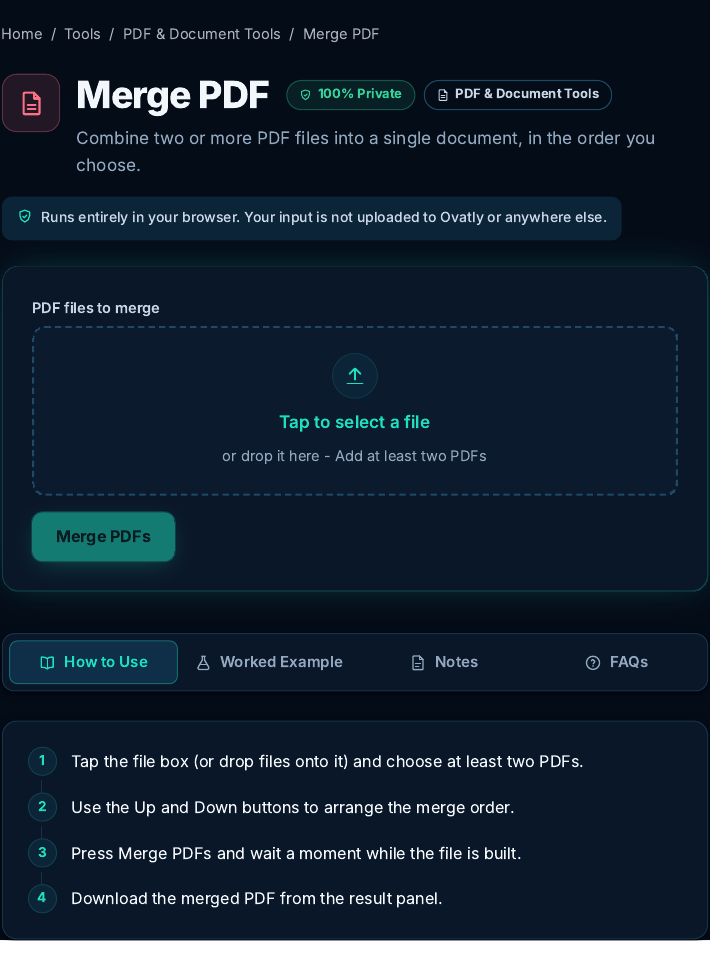 The Merge PDF tool before any files are added. Screenshot: genuine capture from the live Ovatly staging website, 9 November 2026.
Step by step: merge PDFs in your browser
Step 1: Open the tool. Go to the Merge PDF tool. There is nothing to install and no account to create.
Step 2: Add your files. Click "Add PDF files" and select your documents, or drag and drop them onto the page. You can add files one at a time or in a batch. Each file appears in a list with its name and number of pages.
Step 3: Put them in order. Drag the files up or down until the list reads the way the final document should read. This order matters most: the merged file's pages follow it exactly. If you added a file by mistake, remove it with its remove button; nothing has been changed on your device at this point.
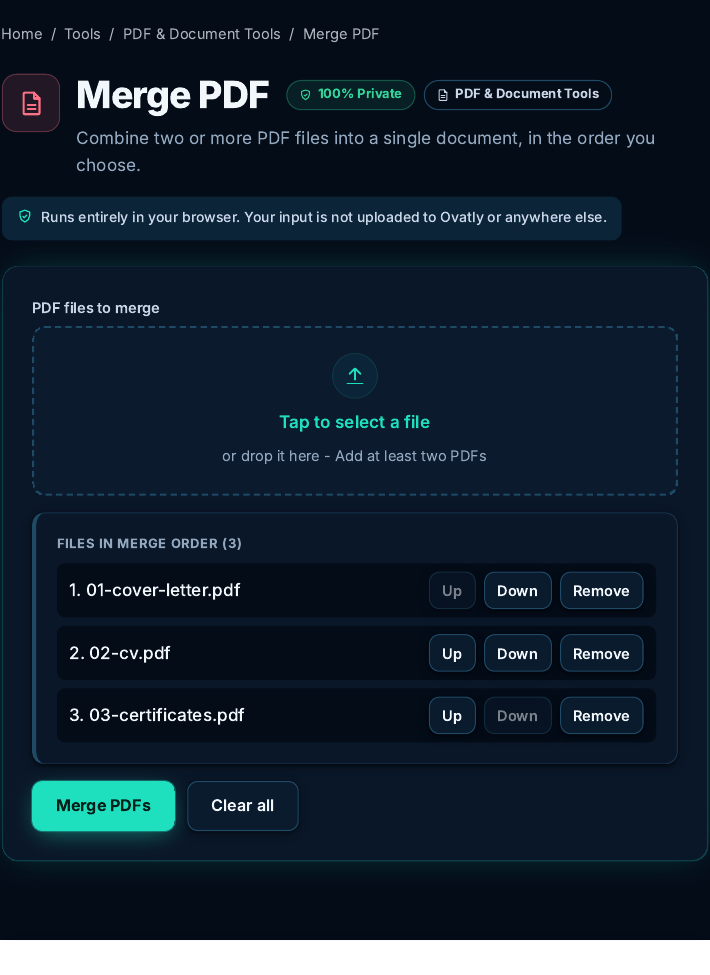 The three sample files in merge order. The order in this list is the order of the finished document. Screenshot: genuine capture from the live Ovatly staging website, 9 November 2026.
Step 4: Merge. Click the merge button. Your browser combines the pages locally. How long this takes depends on the total size of your files and the speed of your device, because your device is doing the work a server would otherwise do.
Step 5: Download and check. Save the merged PDF, then open it and scroll through it once. Confirm the order, the page count, and that the pages look right. Only then delete or archive the parts.
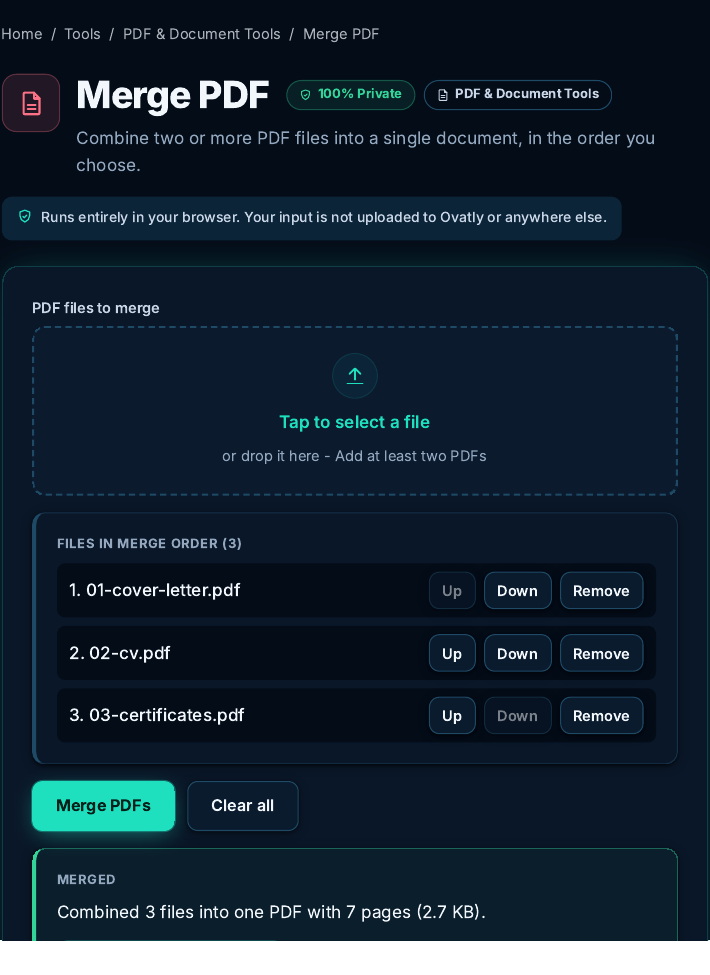 The result panel after merging: 3 files combined into one 7-page PDF of 2,714 bytes (the panel shows this rounded as 2.7 KB). Screenshot: genuine capture from the live Ovatly staging website, 9 November 2026.
If your merged file turns out too big to send afterwards, the usual cause is scanned pages, and our PDF Compressor tool can shrink it, also in your browser. If you later need one section back out, Split PDF and Extract PDF Pages do the reverse jobs.
Worked example: a job application, assembled
A real merge, run twice (in the tool itself on staging, and locally with the same library), with identical results both times, so the numbers below are measured, not invented. The task: one application PDF for an employer who wants a single file.
- Cover letter: 1 page, 997 bytes
- CV: 2 pages, 1,299 bytes
- Certificates: 4 pages, 1,767 bytes
The files were added in reading order (letter, CV, certificates, not alphabetical order), then merged. Result: one 7-page PDF of 2,714 bytes, from inputs totaling exactly 4,063 bytes. (The tool panel displays the result rounded, as "2.7 KB".) Do not read a promise into that: merging does not normally compress a PDF, and you should expect a merged file to be roughly the size of its parts combined, sometimes a little more, sometimes a little less. In this test it came out smaller; that is a property of these small text files, not a feature of merging. Scanned real-world documents would make every number far bigger; the process is unchanged.
What this method cannot do (limitations)
- Password-protected or damaged files. If a PDF needs a password to open, or is corrupted, the browser cannot read its pages and the merge will fail for that file. Remove the protection in the app that created it, or repair the file first.
- Very large files depend on your device. Because your device does the work, several hundred megabytes of scans can overwhelm an old phone; at that scale a desktop, or a server-based tool, is the better choice.
- It merges pages, it does not edit them. Text inside the pages cannot be changed here. Interactive form fields and some bookmarks may not survive the copy into the new file; for a form you must submit as a working form, check the merged result carefully or use the original.
- Scanned pages stay pictures. Merging does not make scanned text searchable; that needs OCR, a different tool.
For heavy or unusual work, a full desktop application remains the right tool; Adobe's guide in the references shows what the paid route adds.
Common mistakes
- Merging in alphabetical order by accident. File pickers often sort by name. Rename with number prefixes, or reorder in the tool, before you merge.
- Forgetting the check at the end. Always open the merged file and scroll through it. A quick check now beats resending an apology and a corrected file.
- Merging a file you still need separately, then deleting the parts. Keep the originals until the recipient confirms they have what they need.
- Assuming the merged file is small enough to email. Mail providers cap attachments. For personal Gmail accounts the sending limit is 25 MB (see references); Google Workspace accounts can have different limits. Check the final size before you compose the message.
- Uploading sensitive documents out of habit. If a task can be done locally, the safest copy of a document is the one that never left your device.
Troubleshooting
| Problem | Likely cause | Fix |
|---|---|---|
| A file will not add | It is not a PDF, or it is password-protected | Confirm the file type; remove the password in its original app and retry |
| Merge fails partway | One file is damaged | Add files one at a time to find the bad one; re-export it from its source app |
| The browser tab freezes on huge files | Device memory limits during local processing | Close other tabs, use a desktop, or split the job into two merges, then merge the results |
| Pages are in the wrong order | File order in the list | Reorder the list and merge again; the originals are untouched |
| Merged file still too large to send | Scanned image pages | Run it through the PDF Compressor, or split it with Split PDF and send in parts |
FAQs
Is merging PDFs in the browser really private? Your documents are processed on your device and are not uploaded to Ovatly. That is the design of the tool, and it is also why very large files depend on your device's power. No tool can protect a device that is itself compromised, so normal device hygiene still matters.
Is it free, and do I need an account? Yes, free, and no account or sign-up. Open the page and merge.
How many files and pages can I merge at once? The tool sets no fixed limit on the number of files or their size; we checked the code rather than guessing. The practical limit is your device's memory, because the whole merge happens there. If a very large merge fails or the tab becomes unresponsive, split the job into two smaller merges and then merge the two results.
Will the quality of my pages drop? No. Pages are copied into the new file as they are, not re-rendered as images. Text stays text and images keep their resolution.
Can I merge on my phone? Yes, if the files are modest in size. The same steps apply; give big jobs to a computer.
What happens to bookmarks and form fields? Page content carries over. Some bookmarks and interactive form behavior may not. If the merged file must work as a fillable form, test it after merging, or keep the original form separate.
Conclusion
Merging PDFs does not require handing your documents to a stranger's server. Add the files to the Merge PDF tool, set the order, merge, and check the result once; the time it takes will depend on your files and your device. When a job outgrows the browser (protected files, huge scans, fillable forms), you now know which limitation you hit and which heavier tool is worth opening.
References
- Google Support: "Send attachments with your Gmail message" (the 25 MB attachment limit). https://support.google.com/mail/answer/6584
- Adobe Help: "Merge and combine files into one PDF" (the Acrobat route, for readers who need desktop features). https://helpx.adobe.com/acrobat/how-to/merge-combine-pdf-files.html
- pdf-lib, the open-source library that performs the merge in your browser: https://pdf-lib.js.org